
- Preview Options (Desktop, Tablet & Mobile)
- Section
- Troubleshooting: Missing Icons
- Spectra Patterns
- Contact Form 7: Multiple Column Fields
- Contact Form 7: Checkbox / Radio / Acceptance Control
- Unable To Style Contact Form 7
- Tab Index For Multiple Gravity Forms
- Getting Started With Spectra
- Exclude Heading From TOC
- Importing Starter Templates With Spectra
- Getting Started With Spectra
- Manually Install Spectra Via FTP
- Automatic Beta Updates
- Rollback To Previous Versions
- Load Google Fonts Locally
- Activate Spectra Pro License
- Install Spectra Pro
- Translate Strings With Loco Translate
- Process Refund Requests
- Transparent / Sticky Header
- Change Site Logo
- Change Global Styles
- Disable Title on Posts & Pages
- Transparent / Sticky Header For Single Page / Post
- Change Header & Footer Patterns
- Custom / Google Fonts
- Reset Global Default Styling
- Manually Install Spectra One Via FTP
- Enable / Disable Header & Footer On Specific Pages / Posts
- Container
- Buttons
- List
- Modal
- Slider
- Animations
- Icons
- Tabs
- Text Block
- Countdown
- Loop Builder
- Image Mask
- Dynamic Content
- Global Styles
- Accordion
- Responsive Control
- Font Management
- Google Maps
- Separator
- Getting Started With Spectra
- Public Actions and Hooks
- Popup Builder
- Counter Block
- Login Block
- Register Block
- Spectra Design Library Guide
- How to Enable Spectra 3 Beta
- Preview Options (Desktop, Tablet & Mobile)
Login Block
Introduction
The Login Form Block allows you to create customizable user login forms anywhere on your WordPress site. Perfect for member areas, custom login pages, or frontend authentication. The block provides extensive styling options and modular child components that you can arrange and customize to match your design needs.
How to Add or Use the Block
Adding the Block
- Click the “+” button in the editor to open the block inserter
- Search for “Login Form” or navigate to the Spectra Pro v2 category
- Click on the Login Form Block to add it to your page
- The block automatically creates a complete login form with all necessary fields
Working with Form Components
- Click on any form element to select and customize it
- The form includes these child blocks by default:
- Welcome heading
- Username/Email input field
- Password input field with toggle visibility
- Remember Me checkbox
- Submit button
- Forgot password and register links
- Success and error message areas
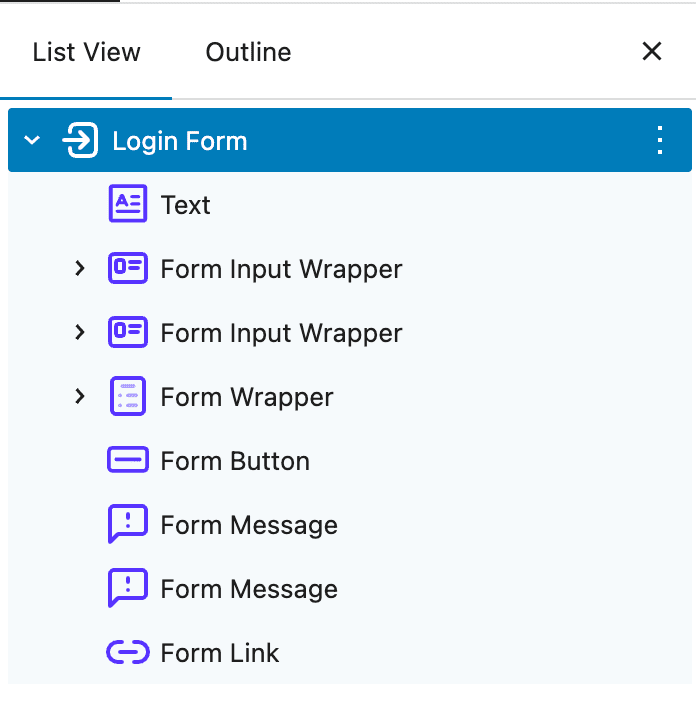
Customizing Form Elements
- Select individual child blocks to customize their specific settings
- Use the parent Login Form block settings for global color and style controls
- All child blocks inherit parent colors but can override locally
Block Architecture
The Login Form Block uses a parent-child relationship:
- Login Form Block (Container):
spectra-pro/login– Manages overall layout, colors, and form behavior - Child Blocks: Individual form components that inherit parent settings:
spectra-pro/form-input-wrapper– Input field containersspectra-pro/form-input-label– Field labelsspectra-pro/form-icon– Input field iconsspectra-pro/form-input-field– Input fieldsspectra-pro/form-checkbox– Remember Me checkboxspectra-pro/form-button– Submit buttonspectra-pro/form-link– Forgot password and register linksspectra-pro/form-message– Success/error messagesspectra-pro/form-recaptcha– reCAPTCHA component
Important: Child blocks inherit styling from the parent but can be customized individually.
General Settings
| Option | Description | Available Settings |
|---|---|---|
| Show Labels | Display field labels | On/Off toggle |
| Show Icons | Display icons in input fields | On/Off toggle |
| Show Remember Me | Display remember me checkbox | On/Off toggle |
| Show Forgot Password | Display forgot password link | On/Off toggle |
| Show Register Link | Display registration link | On/Off toggle |
| Show Password Toggle | Allow showing/hiding password | On/Off toggle |
| Overall Alignment | Form alignment | Left, Center, Right |
| Button Alignment | Submit button alignment | Left, Center, Right |
| Form Width | Maximum width of form container | Custom width with units |
Field Labels and Placeholders
| Option | Description | Default Value |
|---|---|---|
| Username Label | Label for username field | “Username or Email” |
| Username Placeholder | Placeholder text | “Enter your username or email” |
| Password Label | Label for password field | “Password” |
| Password Placeholder | Placeholder text | “Enter your password” |
| Remember Me Label | Checkbox label | “Remember Me” |
| Submit Button Text | Button text | “Log In” |
| Forgot Password Text | Link text | “Forgot Password” |
| Forgot Password URL | Link destination | URL field |
| Register Link Text | Link text | “Don’t have an account? Register” |
| Register Link URL | Link destination | URL field |
Color Settings
Label Colors
| Option | Description | Available Settings |
|---|---|---|
| Label Color | Default label text color | Color picker |
| Label Color Hover | Label text color on hover | Color picker |
Input Field Colors
| Option | Description | Available Settings |
|---|---|---|
| Input Text Color | Text color inside input fields | Color picker |
| Input Text Color Hover | Text color on hover | Color picker |
| Input Background | Input field background | Color picker |
| Input Background Hover | Background on hover | Color picker |
| Input Border Color | Border color | Color picker |
| Input Border Hover | Border color on hover | Color picker |
| Input Border Focus | Border color when focused | Color picker |
| Placeholder Color | Placeholder text color | Color picker |
Icon Colors
| Option | Description | Available Settings |
|---|---|---|
| Icon Color | Color for input field icons | Color picker |
| Fields Icon Size | Size of field icons | Default: 16px |
| Eye Icon Size | Size of password toggle icon | Default: 16px |
| Eye Icon Color | Password toggle icon color | Color picker |
Button Colors
| Option | Description | Available Settings |
|---|---|---|
| Button Text Color | Submit button text color | Color picker |
| Button Text Hover | Text color on hover | Color picker |
| Button Background | Button background color | Color picker |
| Button Background Hover | Background on hover | Color picker |
| Button Border Color | Border color | Color picker |
| Button Border Hover | Border color on hover | Color picker |
Link Colors
| Option | Description | Available Settings |
|---|---|---|
| Link Color | Color for forgot password and register links | Color picker |
| Link Color Hover | Link color on hover | Color picker |
Checkbox Colors
| Option | Description | Available Settings |
|---|---|---|
| Checkbox Background | Background of checkbox | Color picker |
| Checkbox mark Color | Checkmark color | Color picker |
Message Colors
| Option | Description | Available Settings |
|---|---|---|
| Success Background | Background for success messages | Color picker |
| Success Text Color | Text color for success messages | Color picker |
| Success Border | Border color for success messages | Color picker |
| Error Background | Background for error messages | Color picker |
| Error Text Color | Text color for error messages | Color picker |
| Error Border | Border color for error messages | Color picker |
Form Container Colors
| Option | Description | Available Settings |
|---|---|---|
| Background Color | Form container background | Color picker |
| Background Gradient | Container gradient background | Gradient picker |
| Background Hover | Container background on hover | Color picker |
| Gradient Hover | Container gradient on hover | Gradient picker |
Layout and Spacing Settings
| Option | Description | Available Settings |
|---|---|---|
| Padding | Internal spacing | Top, Right, Bottom, Left (Responsive) |
| Margin | External spacing | Top, Right, Bottom, Left (Responsive) |
| Block Gap | Space between form elements | Custom spacing (Responsive) |
| Border | Form container border | Width, Style, Color, Radius |
| Box Shadow | Shadow effects | Multiple shadow layers |
Advanced Features
Security Settings
| Option | Description | Available Settings |
|---|---|---|
| Enable reCAPTCHA | Add spam protection | On/Off toggle |
| reCAPTCHA Version | Version to use | v2, v3 |
Note: reCAPTCHA requires configuration in Spectra Pro settings with valid site and secret keys.
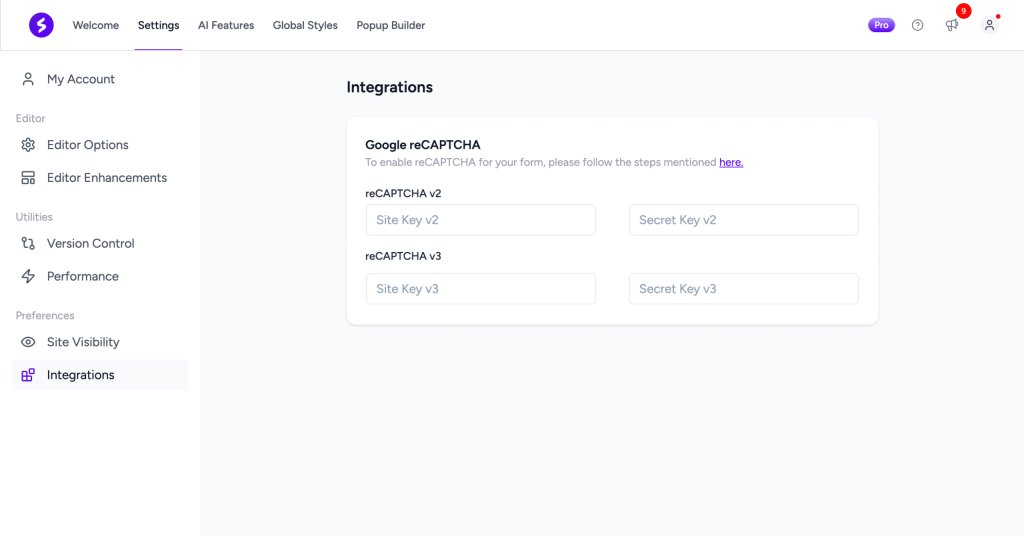
Redirect Settings
| Option | Description | Available Settings |
|---|---|---|
| Redirect After Login | URL to redirect after successful login | URL field |
| Redirect After Logout | URL to redirect after logout | URL field |
| Enable Logged In Message | Show message if user is already logged in | On/Off toggle |
Custom Messages
| Option | Description | Default Value |
|---|---|---|
| Success Message Text | Message shown on successful login | “Login successful! Redirecting…” |
| Error Message Text | Message shown on failed login | “Login failed. Please check your credentials.” |
Demo Messages
| Option | Description | Available Settings |
|---|---|---|
| Show Demo Success Message | Preview success message in editor | On/Off toggle |
| Show Demo Error Message | Preview error message in editor | On/Off toggle |
Device-Specific Settings
| Setting | Desktop | Tablet | Mobile |
|---|---|---|---|
| Font Size | ✓ | ✓ | ✓ |
| Padding | ✓ | ✓ | ✓ |
| Margin | ✓ | ✓ | ✓ |
| Block Gap | ✓ | ✓ | ✓ |
| Border Width | ✓ | ✓ | ✓ |
| Border Radius | ✓ | ✓ | ✓ |
| Icon Size | ✓ | ✓ | ✓ |
Tips and Best Practices
Security Guidelines
- Always Use HTTPS: Ensure your site uses SSL certificates
- Enable reCAPTCHA: Protect against brute force attacks
- Strong Password Policy: Encourage strong passwords
- Limit Login Attempts: Use security plugins to prevent abuse
- Keep WordPress Updated: Ensure WordPress core and Spectra Pro are up to date
Design Guidelines
- Clear Visual Hierarchy: Make the submit button stand out
- Adequate Spacing: Use block gap for better readability
- Mobile Optimization: Test form on mobile devices
- Error Visibility: Ensure error messages are clearly visible
- Accessible Colors: Maintain sufficient color contrast
User Experience Tips
- Show Password Toggle: Help users verify their password entry
- Remember Me Option: Provide convenience for trusted devices
- Clear Error Messages: Help users understand what went wrong
- Forgot Password Link: Always provide password recovery
- Registration Link: Make signup accessible if you allow new users
Accessibility Features
Built-in Accessibility
- Semantic HTML form structure
- Proper label associations
- ARIA attributes for screen readers
- Keyboard navigation support
- Focus indicators
- Error message announcements
Keyboard Controls
- Tab: Navigate forward through form fields
- Shift + Tab: Navigate backward through form fields
- Enter: Submit form
- Space: Toggle checkbox and password visibility
Troubleshooting
Login not working?
- Verify WordPress login credentials are correct
- Check for plugin conflicts
- Ensure form is not cached
- Verify redirect URLs are valid
- Check browser console for errors
Styling not applying?
- Clear browser and server cache
- Check theme compatibility
- Use browser inspector for CSS conflicts
- Verify no custom CSS is overriding
reCAPTCHA not showing?
- Configure reCAPTCHA keys in Spectra Pro settings
- Verify reCAPTCHA version matches your keys
- Ensure site key is for the correct domain
- Check if browser extensions are blocking it
Redirect not working?
- Use absolute URLs (include https://)
- Check redirect URL is accessible
- Verify redirect option is enabled
Frequently Asked Questions
Q: Can I customize individual form fields?
A: Yes! Select any child block to customize its specific settings while inheriting parent colors.
Q: How do I change the form width?
A: Use the “Width” setting in the parent Login Form block settings.
Q: Can I remove the Remember Me checkbox?
A: Yes, toggle off “Show Remember Me” in the general settings.
Q: Does this work with custom user roles?
A: Yes, the form uses WordPress authentication and supports all user roles.
Q: Is it compatible with two-factor authentication plugins?
A: Yes, the form uses standard WordPress login hooks and is compatible with most 2FA plugins.
Q: Can I use multiple login forms on the same page?
A: Yes, each form gets a unique ID to prevent conflicts.
Q: What happens if someone is already logged in?
A: You can enable “Logged In Message” to show a message to users who are already authenticated.
Related Documentation
For user registration functionality, see the Register Form Block documentation.
We don't respond to the article feedback, we use it to improve our support content.