
- Preview Options (Desktop, Tablet & Mobile)
- Section
- Troubleshooting: Missing Icons
- Spectra Patterns
- Contact Form 7: Multiple Column Fields
- Contact Form 7: Checkbox / Radio / Acceptance Control
- Unable To Style Contact Form 7
- Tab Index For Multiple Gravity Forms
- Getting Started With Spectra
- Exclude Heading From TOC
- Importing Starter Templates With Spectra
- Getting Started With Spectra
- Manually Install Spectra Via FTP
- Automatic Beta Updates
- Rollback To Previous Versions
- Load Google Fonts Locally
- Activate Spectra Pro License
- Install Spectra Pro
- Translate Strings With Loco Translate
- Process Refund Requests
- Transparent / Sticky Header
- Change Site Logo
- Change Global Styles
- Disable Title on Posts & Pages
- Transparent / Sticky Header For Single Page / Post
- Change Header & Footer Patterns
- Custom / Google Fonts
- Reset Global Default Styling
- Manually Install Spectra One Via FTP
- Enable / Disable Header & Footer On Specific Pages / Posts
- Change Sidebar Contents
- FSE Templates & Template Parts
- Create Custom Front Page
- FAQ's
- Hide / Show Block Elements
- Group Blocks / Containers
- Clear Customizations
- Actual Predefined Font Sizes
- Make Changes To Single Pages
- Change Hero Section
- Install Spectra One
- Globally Change Width
- Sidebar: Page & Post
- FSE Stylebook
- Change Global Color Palette
- Customizing Block Styles
- Modify Patterns
- Change Sidebar Position For Pages & Posts
- Adding Dynamic SVG Color
- FSE Guide
- Editing Templates
- Change Favicon
- WooCommerce: Sticky Headers
- Google Analytics
- Create A Child Theme
- Translate Using WPML
- FSE Additional CSS
- Templates For Custom Post Types
- Custom Post Type Archive Template Using ACF
- Navigation Block
- How to Create and Customize Navigation Menus in the Spectra One Theme
How to Change the Site Logo?
A site logo is an icon that represents a website or a brand. You’ll usually see it at the top of a website’s page. It helps people know what website they’re on and what company it represents.
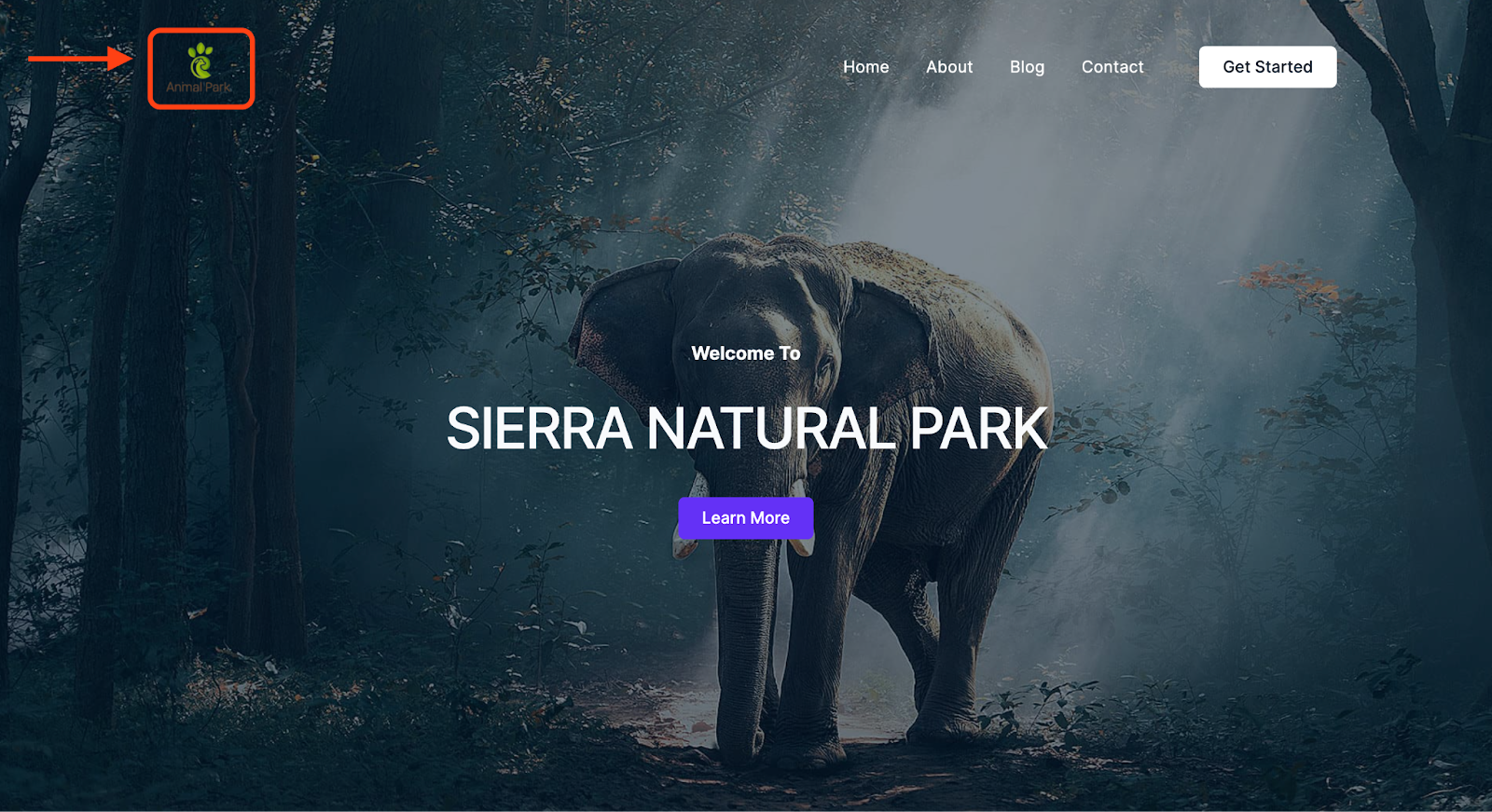
To change it in Spectra One, go to your WordPress dashboard and follow these steps:
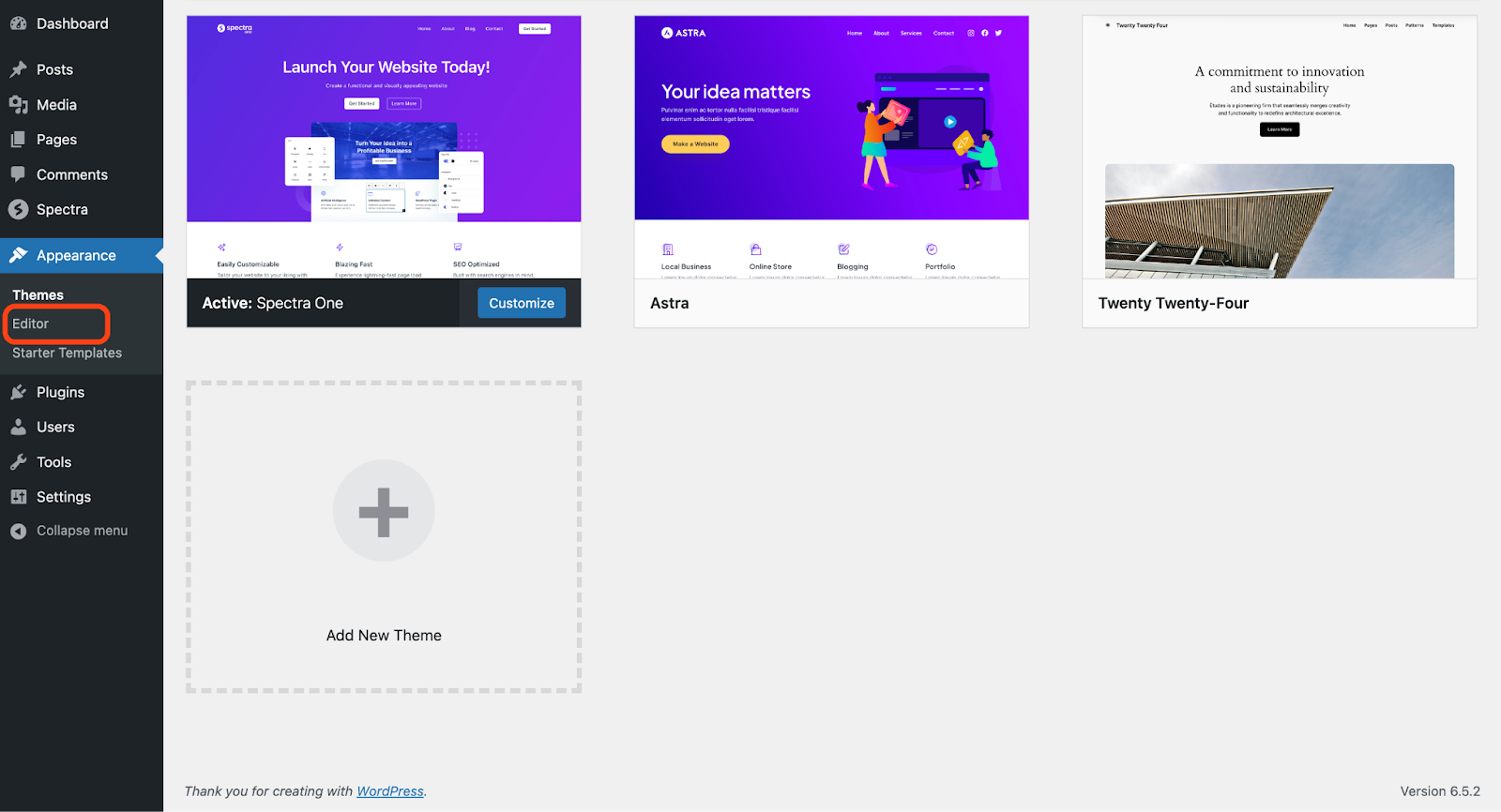
- Navigate to Appearance > Editor and double-click on your site logo.
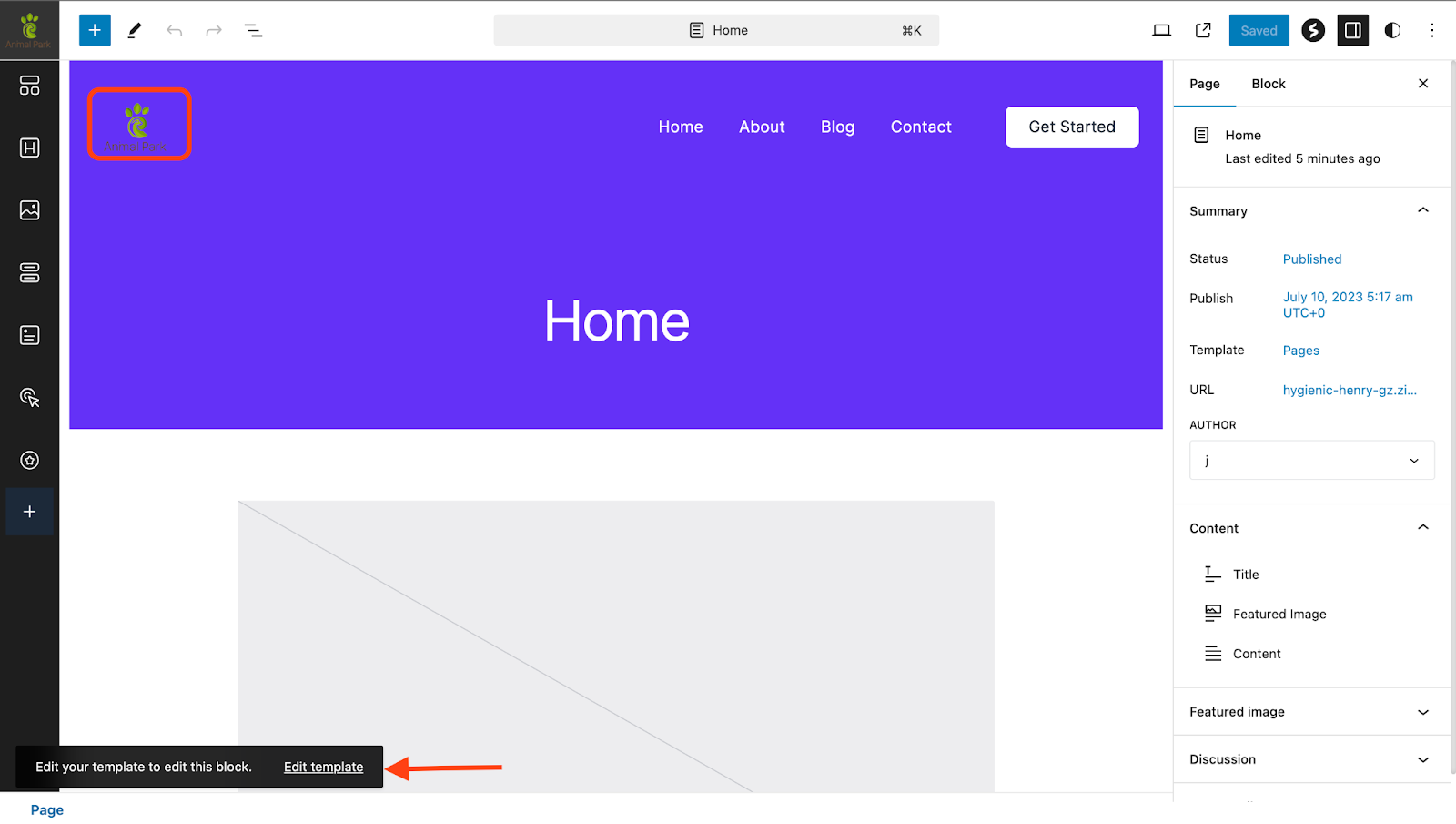
- Click on the “Edit template” option when prompted.
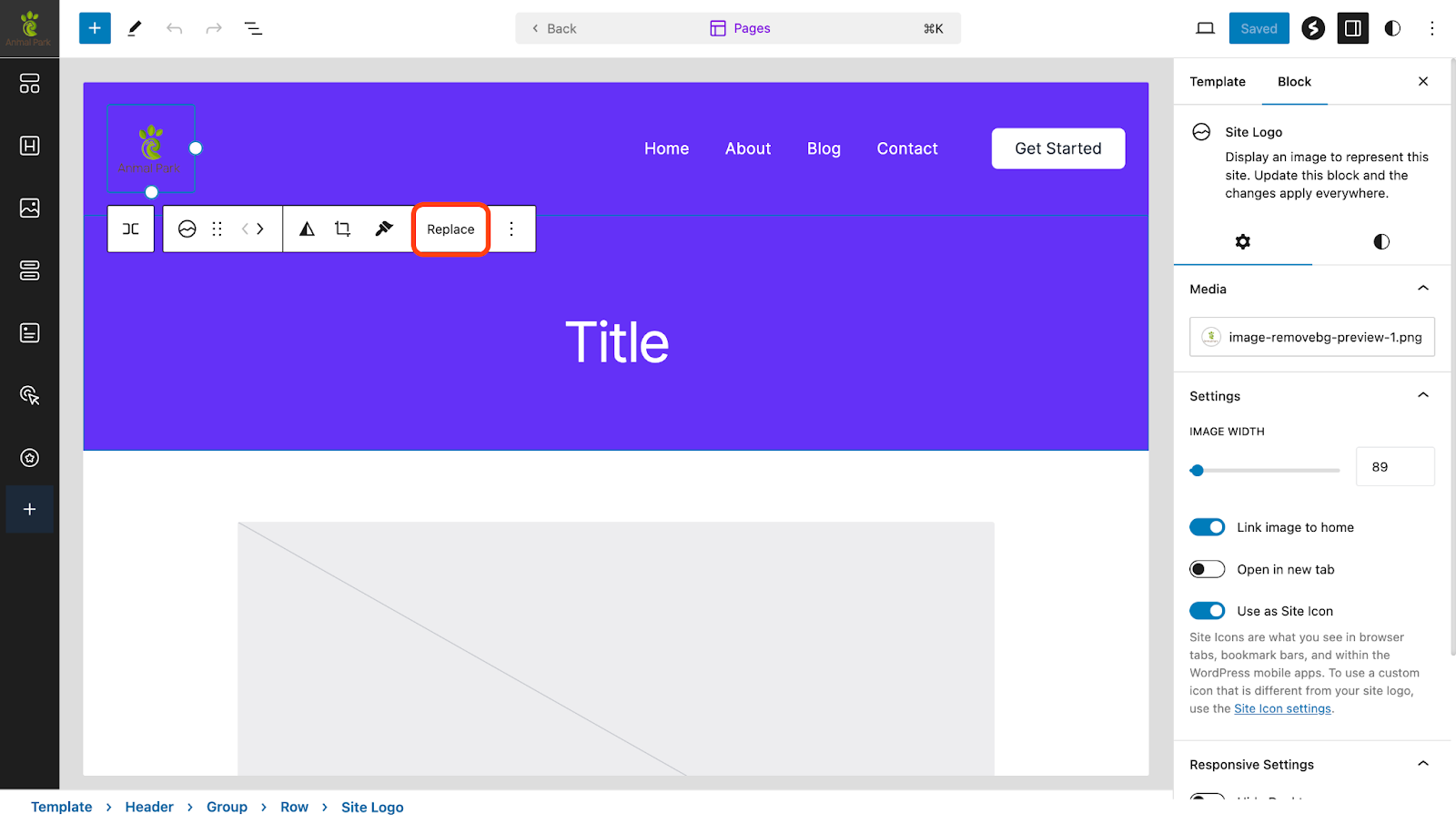
- Select the site logo block and click “Replace”. You can upload an image from your device or select one from the media library.
- Save your changes.
Here’s a video walkthrough of the same:
After following these steps, the Spectra One theme should display the updated logo on your website.
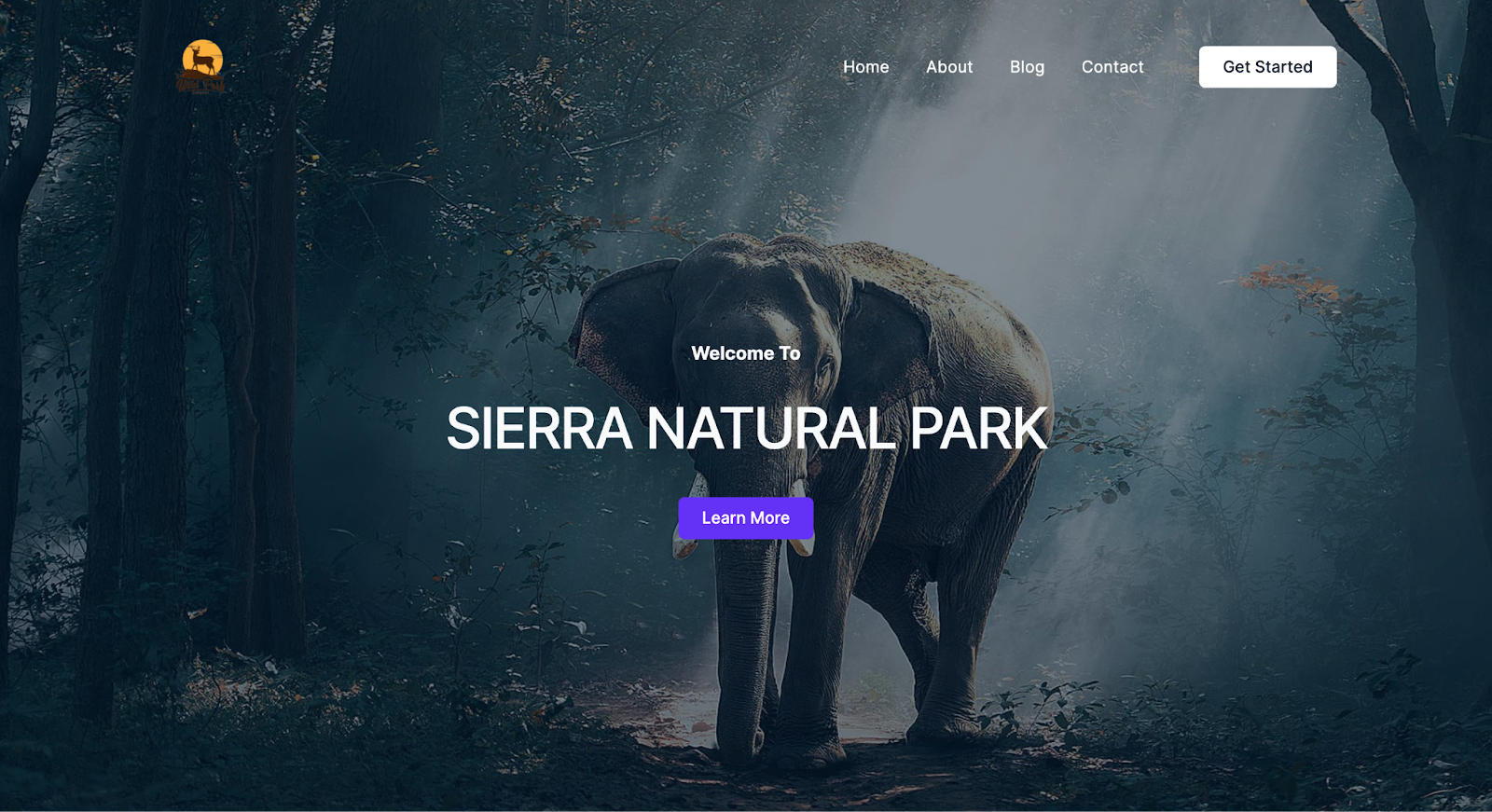
If it doesn’t, please contact us by opening a ticket below. We’re always here to help!
Was this doc helpful?
What went wrong?
We don't respond to the article feedback, we use it to improve our support content.