
- Preview Options (Desktop, Tablet & Mobile)
- Section
- Troubleshooting: Missing Icons
- Spectra Patterns
- Contact Form 7: Multiple Column Fields
- Contact Form 7: Checkbox / Radio / Acceptance Control
- Unable To Style Contact Form 7
- Tab Index For Multiple Gravity Forms
- Getting Started With Spectra
- Exclude Heading From TOC
- Block Display Conditions
- Import Single Pages, Templates, & Block Patterns
- Enable/Disable Design Library Button
- Copy & Paste Style
- Container Flex Property
- Default Content Width
- Blocks Editor Spacing
- Collapse Panels
- Responsive Conditions
- Dynamic Content Extension
- Site Visibility
- Spectra Actions: Clear Cache
- Quick Action Bar
- Add Multiple Instagram Accounts
- Grid Builder
- Move Title Bar To Top
- Resolving Container Layout Conflicts
- Register High-Privileged Users
- User Roles Access To AI
- Database Update Instructions (Below 2.0.0)
- FAQ's: VIP Priority Support
- Whitelist Email Address
- Using ACF Repeater Field in Spectra
- Pixabay Image Search Feature
- How to Fix Stretched Spectra Images in WordPress 6.7
- How to Change Breakpoints in Spectra?
- Controlling Access to the Spectra Design Library Based on User Roles
- Multi-Column Form Block Using Utility Classes
- Why Am I Seeing Mixed Content or Non-HTTPS Errors?
- Importing Starter Templates With Spectra
- Getting Started With Spectra
- Manually Install Spectra Via FTP
- Automatic Beta Updates
- Rollback To Previous Versions
- Load Google Fonts Locally
- Activate Spectra Pro License
- Install Spectra Pro
- Translate Strings With Loco Translate
- Process Refund Requests
- Transparent / Sticky Header
- Change Site Logo
- Change Global Styles
- Disable Title on Posts & Pages
- Transparent / Sticky Header For Single Page / Post
- Change Header & Footer Patterns
- Custom / Google Fonts
- Reset Global Default Styling
- Manually Install Spectra One Via FTP
- Enable / Disable Header & Footer On Specific Pages / Posts
Spectra – Container Flex property
This document describes the Container flex properties and how they can be applied in the Editor panel. It will help you better optimize your designs using Container block.
Direction
The direction option is the basic but most important of container layout options. Choose Row, Column, or the Reversed options depending on your needs.
- Row: Items are positioned horizontally
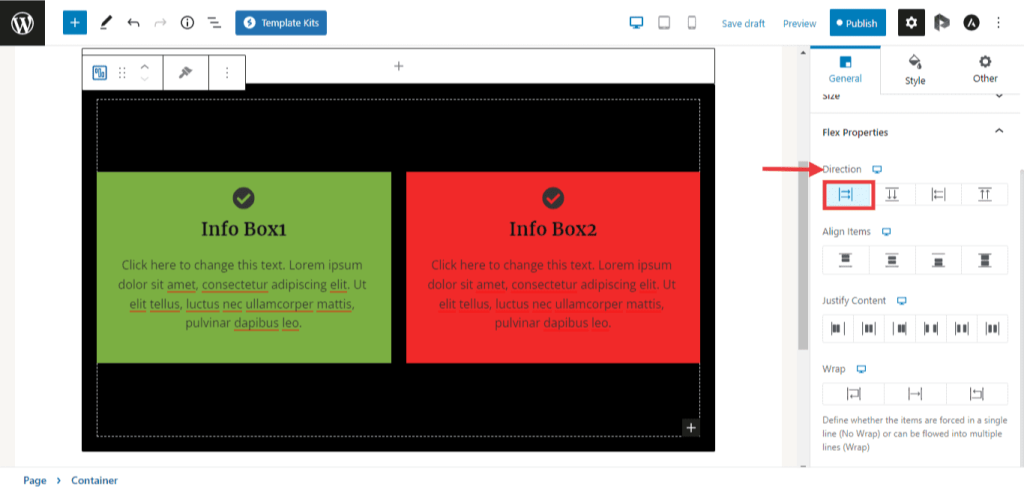
- Column: Items are positioned vertically
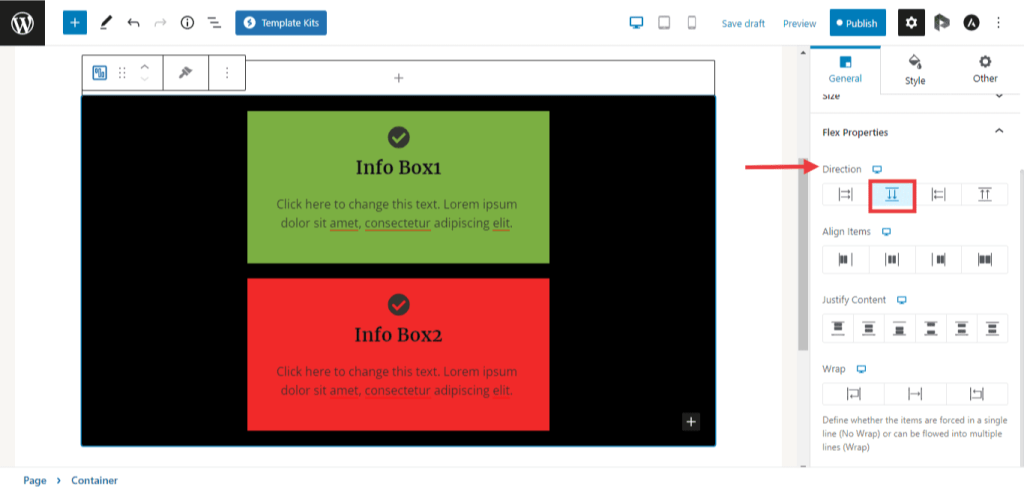
- Row Reverse: Items are positioned horizontally but in reverse order.
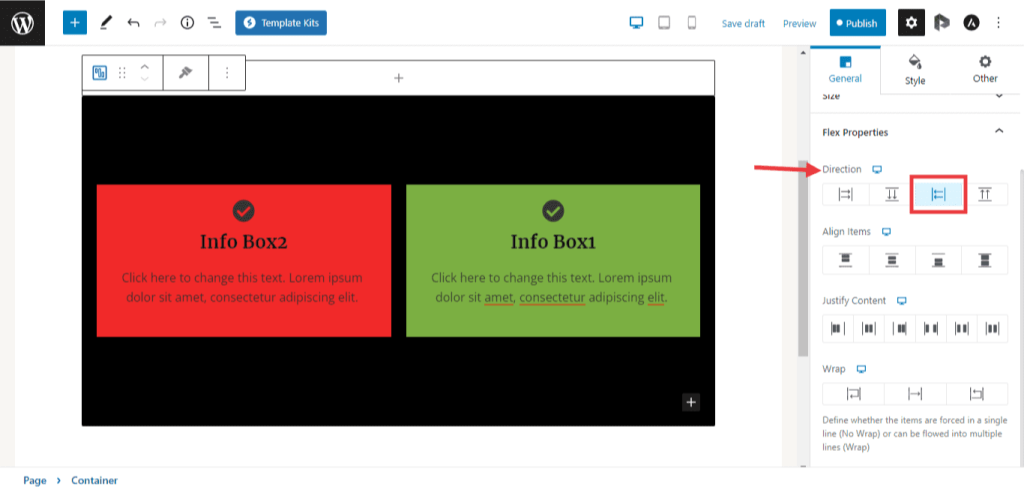
- Column Reverse: Items are positioned vertically but in reverse order
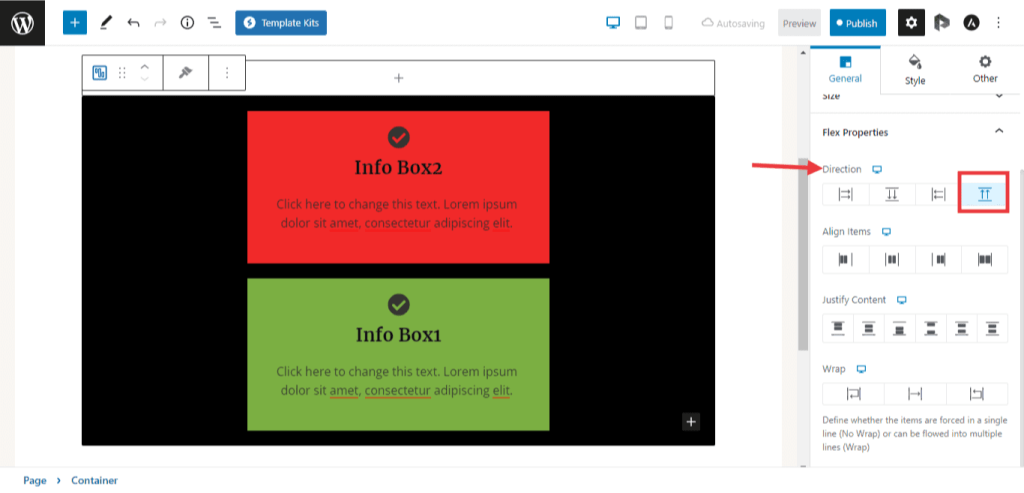
Align Items
When the direction is set to Row, you can change the alignment of items in the container to the top, middle, or bottom of the Container.
The following options are available under \’Align Items\’
- Flex Start: This aligns the items to the top of the container
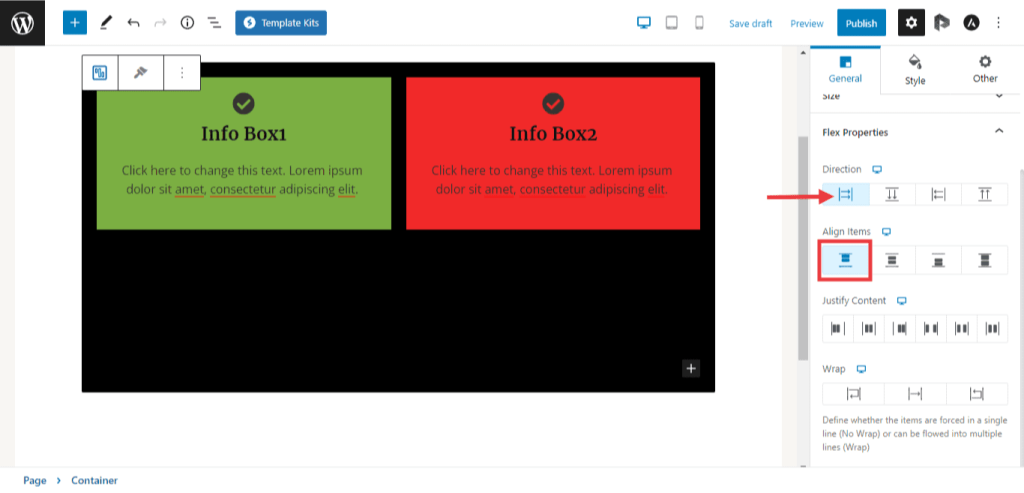
- Center: This aligns the items to the center of the container
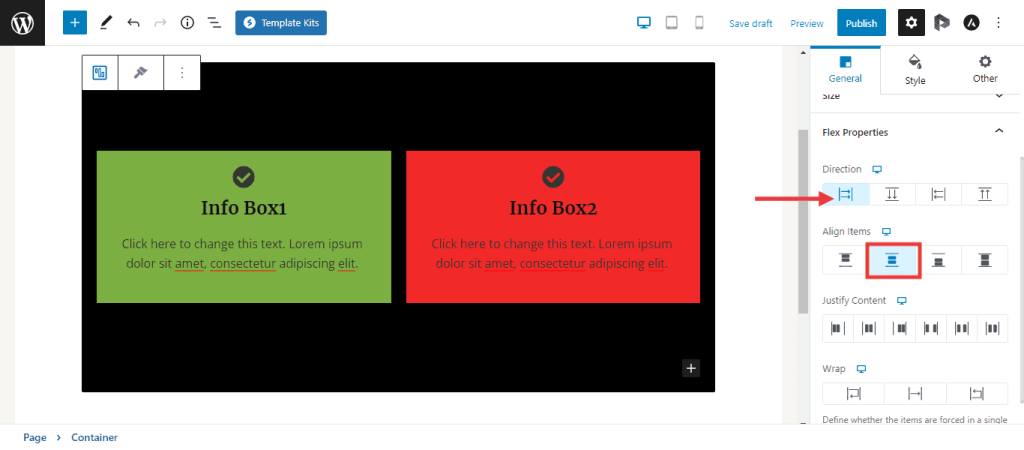
- Flex End: This aligns the items to the bottom of the container.
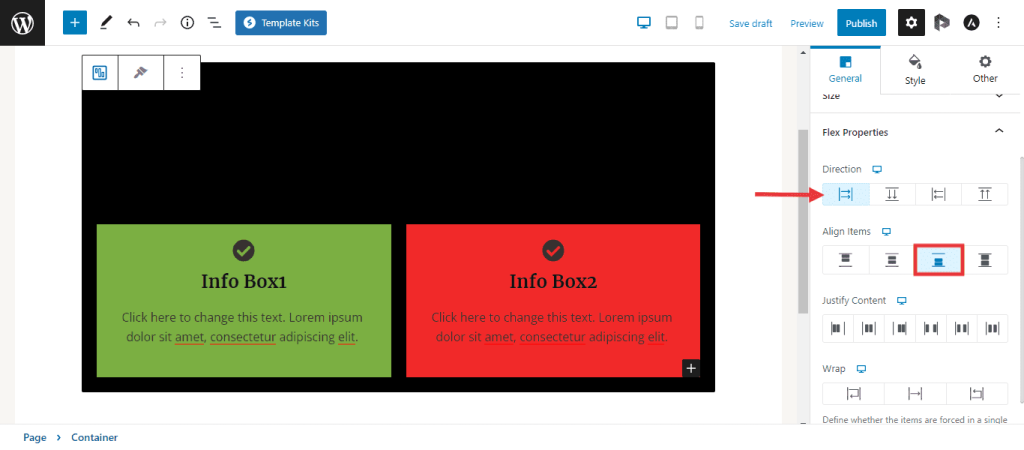
- Stretch: This will attempt to stretch the items to fit the container.
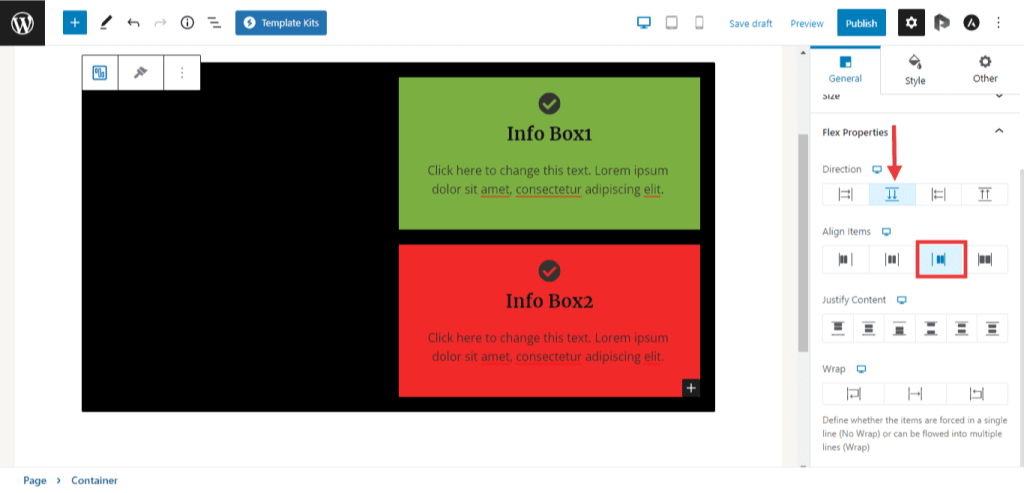
When the direction is set to column, you can change the alignment of items in the container to the left, middle, or right.
The following options are available under \’Align Items\’
- Flex Start: This aligns the items to the left of the container.
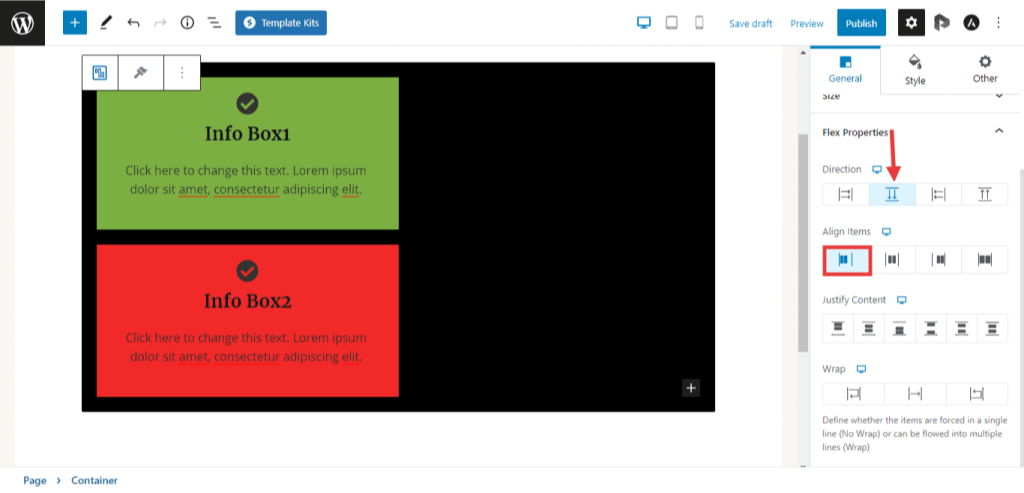
- Center: This aligns the items to the center of the container.
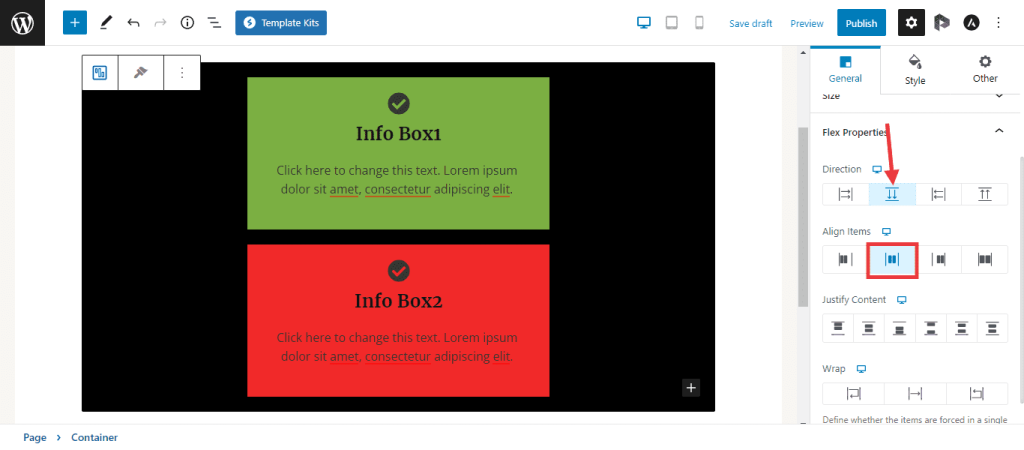
- Flex End: This aligns the items to the right of the container.
- Stretch: This will attempt to stretch the items to fit the container.
Justify Content
The justify-content property defines the alignment along the item’s center axis, and it also helps distribute the space leftover in the container between the items.
The following options are available under Justify content.
- Flex Start: This justifies the content to the starting edge of the container.
- Center: This justifies the content to the center of the container
- Flex End: This justifies the content to the ending edge of the container
- Space Between: This creates space between the content in which the first item is placed on the starting edge and the last to the ending.
- Space Around: This creates equal space between the container and the items.
- Space Evenly: This creates equal space between items without regard to the container.
Wrap
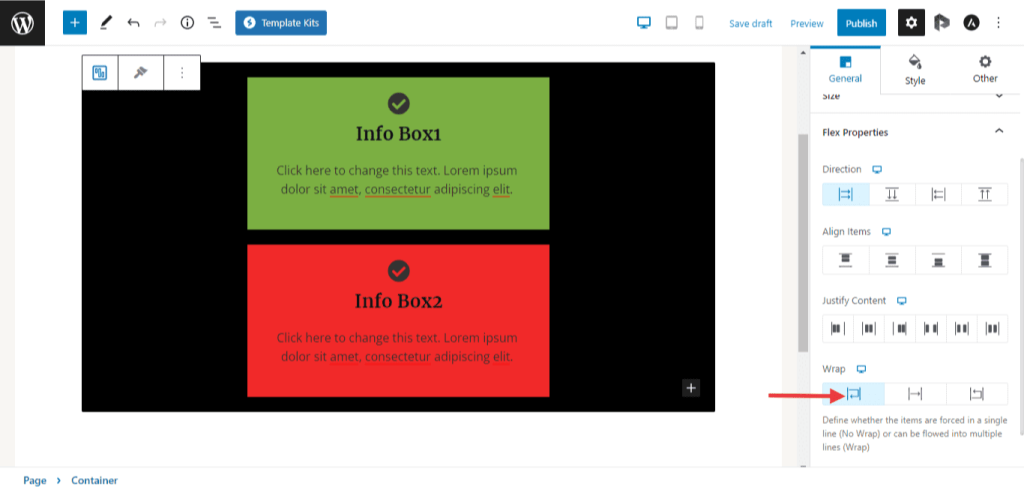
- When you use the wrap, it will allow elements that use a defined width to wrap into multiple lines rather than forcing the items to be on a single line. This can create multi-line elements in the same container.
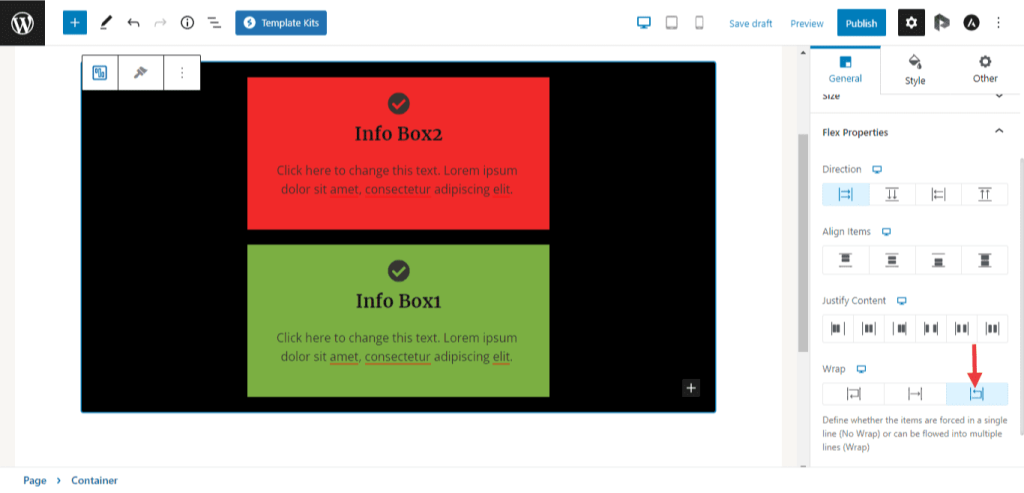
- When you use the wrap reverse, it will allow elements that use a defined width to wrap into multiple lines rather than forcing the items to be on a single line but in reverse order.
We don't respond to the article feedback, we use it to improve our support content.